
Visual Studio Code
The Slint extension for Visual Studio Code (VS Code) gives you syntax highlighting, completion, diagnostics, a live preview of the UI, and a command to create a new project from a template. This page shows how to install it and create a project from a template.
Setting Up VS Code
Section titled “Setting Up VS Code”-
Install VS Code. Download it here ↗.
-
Install the Slint extension. Find it here ↗.
-
Create a new project based on a Slint template. This is done via the command palette (CTRL+Shift+P) or on MacOS (CMD+Shift+P).
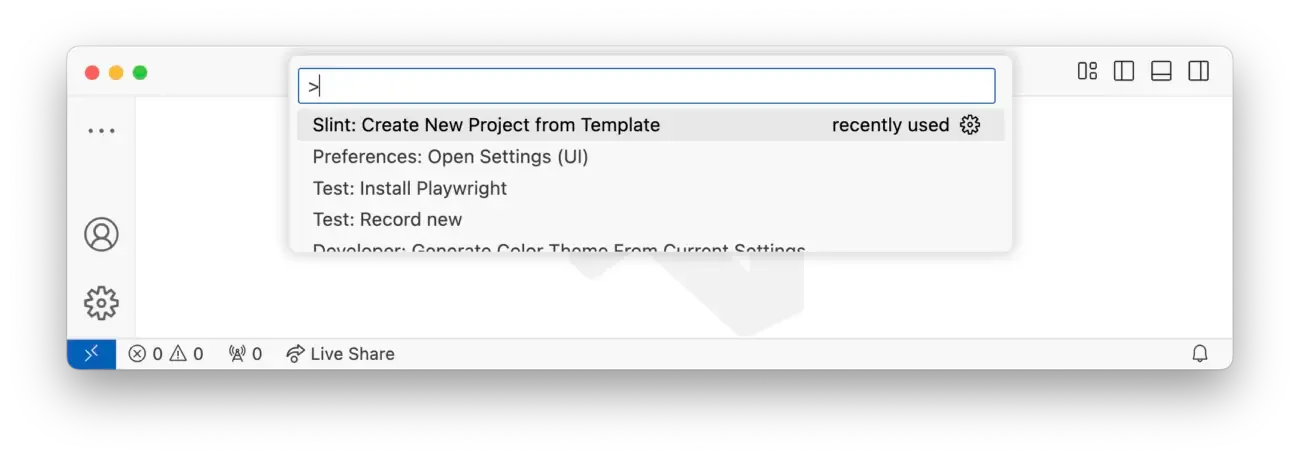 Start typing ‘slint’ and from the options select ‘Slint: Create New Project from Template’.
 -
Choose your language.
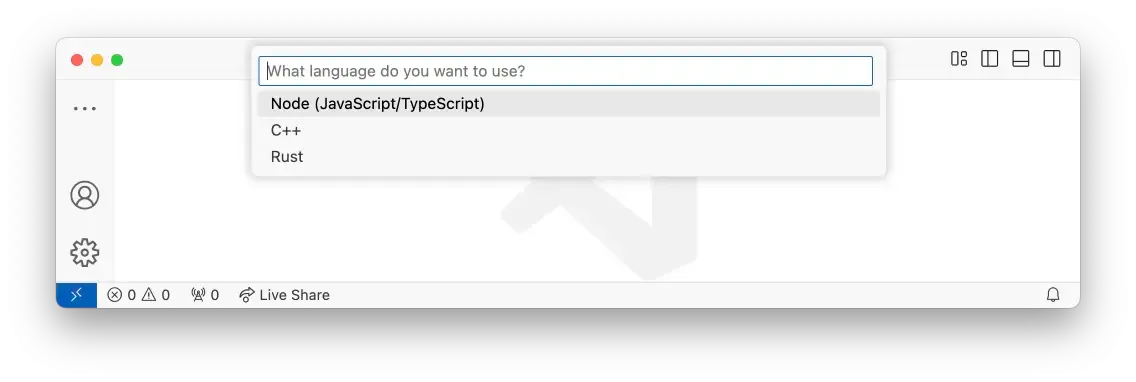 Then select from the list of languages.
 -
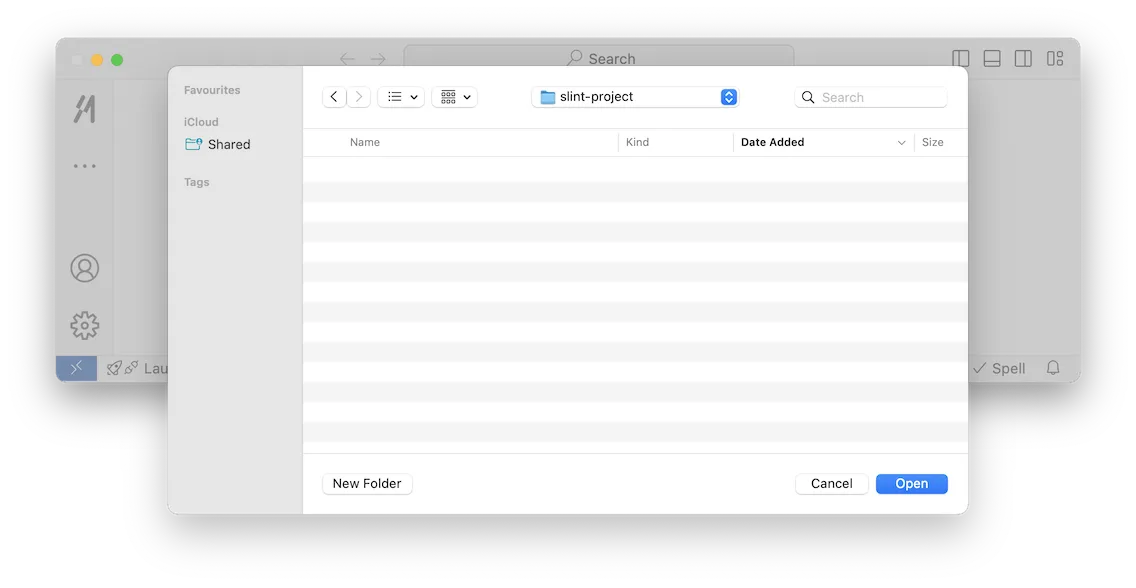
Choose a folder to save the project in.
-
Name the project. Give the project a name and now a new project will be created in the selected folder based on a simple template to get you started.
© 2026 SixtyFPS GmbH